
Placing a Futures order often means entering the same details again, your order amount, Take Profit level and Stop Loss level.
Trade Presets make this easier.
You can now save commonly used order values and let CoinDCX pre-fill them when you prepare a Futures trade. The feature includes two separate options:
- Auto TP/SL: Pre-fills your preferred Take Profit and Stop Loss percentages.
- Order Amount Preset: Pre-fills your preferred order amount for a selected Futures market.
You can review or change every pre-filled value before placing an order.
Important: Trade Presets do not place orders automatically. They only fill in your saved values. You must still review the order and tap Buy or Sell to place it.
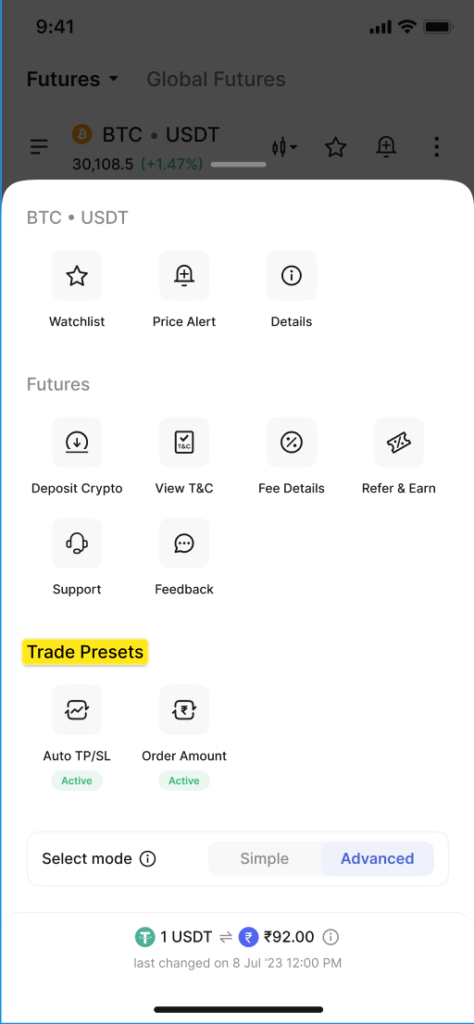
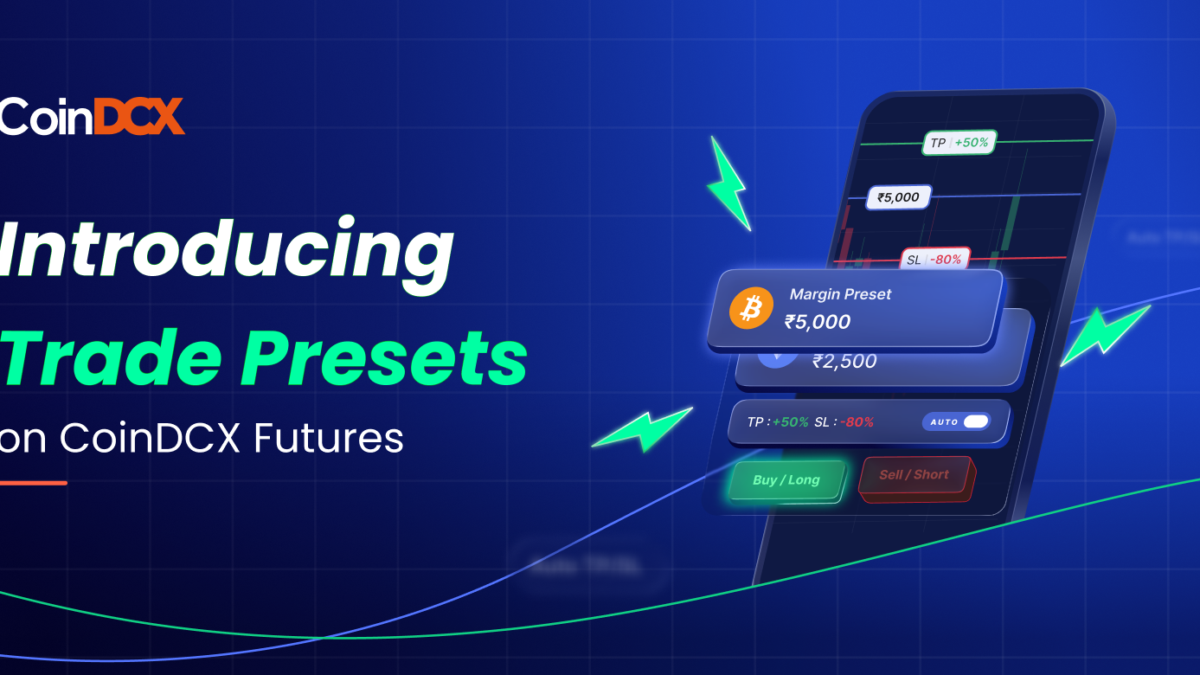
Image: Trade Presets overview
Also Read: Trade On Charts on CoinDCX Futures
What Is Auto TP/SL?
Take Profit and Stop Loss can help you plan when to exit a Futures position.
- Take Profit (TP) is the level at which you want to close a position in profit.
- Stop Loss (SL) is the level at which you want to exit a position to limit further losses.
With Auto TP/SL, you can save your preferred TP and SL as ROE percentages. ROE, or Return on Equity, shows the estimated profit or loss as a percentage of the margin used for the trade.
Once enabled, these percentages are automatically filled in when you prepare an eligible new Futures order.
For example, if you save:
- Take Profit: +50% ROE
- Stop Loss: -90% ROE
CoinDCX will pre-fill these values when you prepare a new entry order. The corresponding trigger prices are calculated based on the order details and the latest applicable price.
You can enable both presets or use only Take Profit or Stop Loss. The feature is currently available for App.The Values are stored on device level & might get cleared if user clears app cache/ uninstall App
Note: Auto TPSL is only applied in order for market with no open orders/ positions
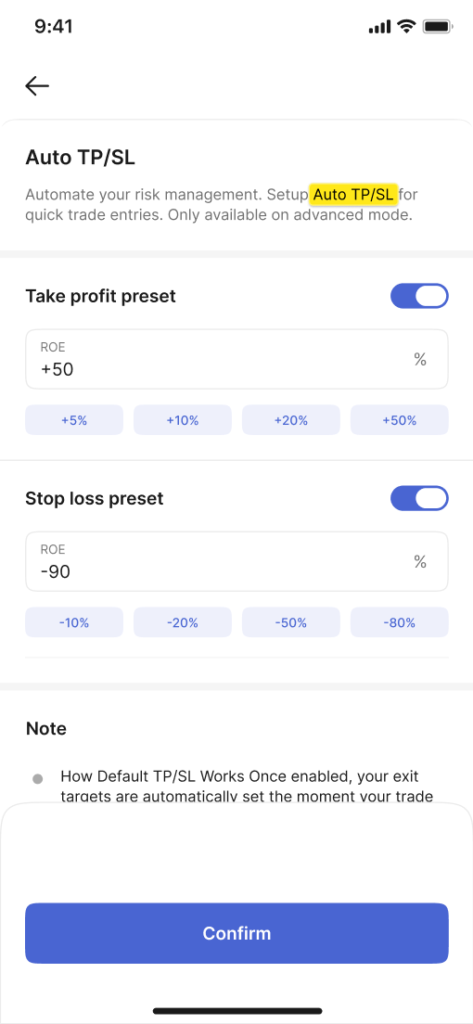
Image: Auto TP/SL setup screen
How to Set Up Auto TP/SL
To create your preset:
- Open CoinDCX Futures on the mobile app.
- Switch to Advanced mode.
- Tap More and select Trade Presets.
- Open Auto TP/SL.
- Turn on the Take Profit, Stop Loss or both toggles.
- Enter your preferred ROE percentages.
- Tap Confirm.
You can also access the setup page from the Auto TP/SL option shown while adding TP/SL to an order.
Your saved TP/SL percentages apply across eligible Futures markets. However, Auto TP/SL is used only for a new entry order. It will not be pre-filled if you already have an open order or active position in that market.
Can You Change an Auto TP/SL Value?
Yes. The pre-filled values are always editable.
Tap the edit icon to change the Take Profit or Stop Loss for that particular order. When you change a pre-filled value, Auto TP/SL is turned off for the current order so that your manual selection is used.
Your original preset remains saved. You can turn Auto TP/SL on again whenever you want to reapply it.
What Is an Order Amount Preset?
An Order Amount Preset saves the amount you commonly use for a particular Futures market. You can save the preset using your preferred input:
- Margin
- Order size
- Quantity
For example, you may save one amount for the BTC market and another for the ETH market. When you return to a market with a saved preset, CoinDCX fills the order amount for you.
Order Amount Presets are saved separately for each market. This means the value saved for one market will not be automatically used for another.
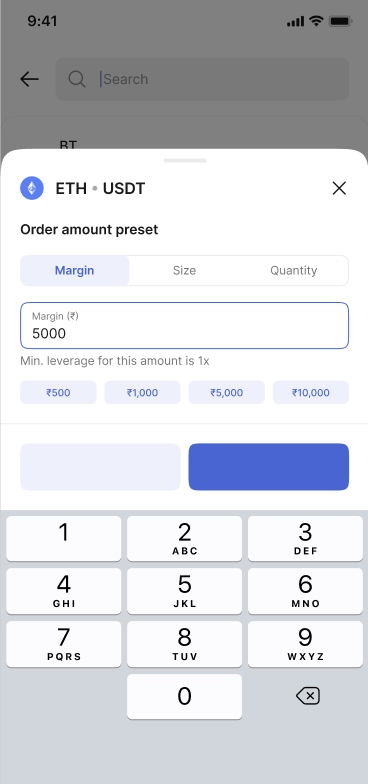
Image: Order Amount Preset screen
How to Set an Order Amount Preset
You can create a preset directly from the order amount field:
- Open the Futures market you want to trade.
- Enter your preferred margin, size or quantity.
- Tab the set Preset button – above the Keypad
- Confirm your selection.
How to Create, Update, or Delete Trade Presets
To create a Trade Preset:
- Go to Futures in the CoinDCX mobile app.
- Switch to Advanced mode.
- Tap More and select Trade Presets.
- Select Order Amount.
- Tap Add Market and choose a Futures market.
- Select margin, size, or quantity and enter the preferred value.
- Confirm the preset.
To update a preset, return to the Trade Presets section, select an existing market, change the saved values, and confirm the changes. You can also delete presets you no longer need from the same section.
Trade Presets can also be used while placing orders through Chart Trading, allowing you to trade directly from the chart with your preferred order settings.
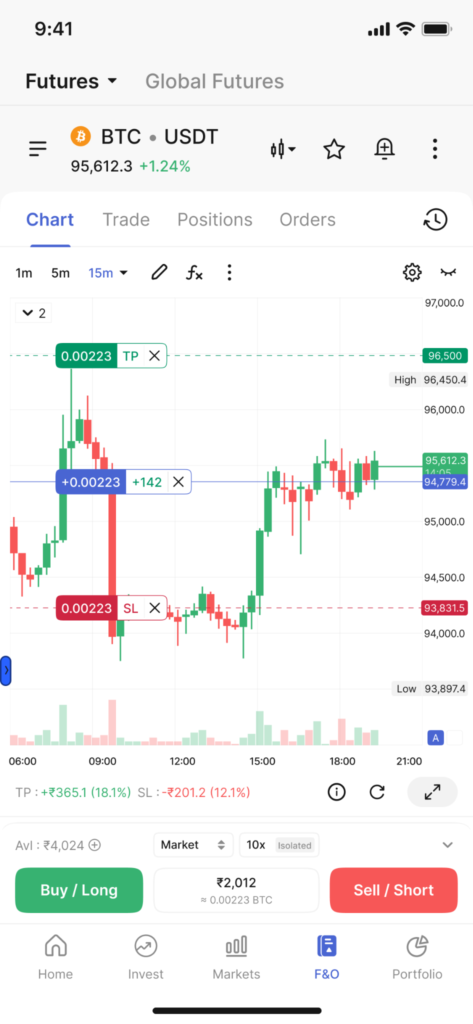
When Is the Saved Order Amount Filled In?
The saved amount may be pre-filled when you:
- Open or return to the Futures trading screen
- Switch to a market with a saved preset
- Refresh the order form
- Prepare another order after placing one
A preset label will appear with the field so you can identify that the amount was filled from a saved preset.
You can still replace it with a different value before placing the order. CoinDCX will also check whether the amount meets the current requirements for that market.
How to Turn Off Trade Presets
Auto TP/SL and Order Amount Presets work independently. You can use either one or both.
To stop using a preset:
- Open More > Trade Presets in Futures Advanced mode.
- Select Auto TP/SL or Order Amount.
- Turn off the relevant preset.
Turning off a preset stops it from being filled in future order forms. You can enable it again whenever required.
Things to Remember Before Placing an Order
Trade Presets are designed to reduce repeated data entry, but they do not replace your final review.
Before placing any Futures order, check:
- The selected Futures market
- Your margin, quantity or order size
- The leverage and margin mode
- Your Take Profit and Stop Loss levels
- The final order details
Saved presets are stored on your device. If you use CoinDCX on another device, you may need to set them up again.
Trade Presets are currently available on the CoinDCX mobile app in Futures Advanced mode.
Trade With Fewer Repeated Steps
Trade Presets make it easier to prepare Futures orders using values you have already selected. Order Amount Presets reduce repeated size entry, while Auto TP/SL helps you include your preferred exit levels from the start.
Every value remains visible and editable, and an order is placed only after you confirm it.
Open CoinDCX Futures in Advanced mode and explore Trade Presets under the More section.
Crypto Futures involve a high degree of risk and may not be suitable for all traders. Market movements can lead to substantial losses. Always review your order details and trade responsibly.