


CoinDCX has launched “Trade on Charts”, a powerful new feature designed for experienced Futures traders who prefer speed, precision, and visual execution. With Trade on Charts, you can place, edit, and manage Futures orders directly on the chart without switching screens on both Mobile & Web.
This feature is currently in limited rollout and will be going live for all users soon, bringing a faster and more intuitive trading experience right to your charts.
Why Trade On Charts?
- Visual setup for Entries, Take Profit (TP), Stop Loss (SL) & Liquidation Zone.
- Faster order placement during volatile market moves
- Easy adjustments by simply dragging order lines on the chart
- Check Active P&L and Liquidation Zone directly on the chart
- Customizable chart view for cleaner and distraction-free trading
Step-by-Step: How to Use Chart Trading
Here is the step-by-step guide to using chart trading on CoinDCX.
1. What’s New: Chart Trading Mode
To deliver a seamless user experience, we’ve introduced Chart Trading Mode.
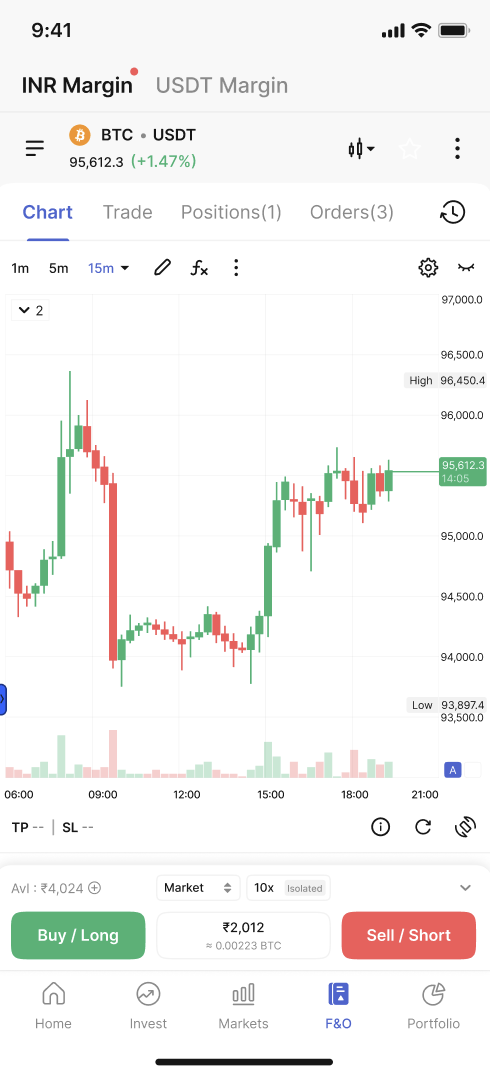
- Just head to the Futures page and switch to the Charts section, you can now place orders directly from the chart without going to the Order Form separately.
- The chart itself acts as your interactive order form, letting you set entries, adjust TP/SL, and manage trades visually.
- This makes trading faster, easier, and more intuitive, especially for experienced traders who rely on real-time decisions.
2. Placing a Market Order
- Open the Order Form from the chart
- Select Order Type – Market
- Choose your Leverage
- Enter Order Size
- Tap Buy/L or Sell/S
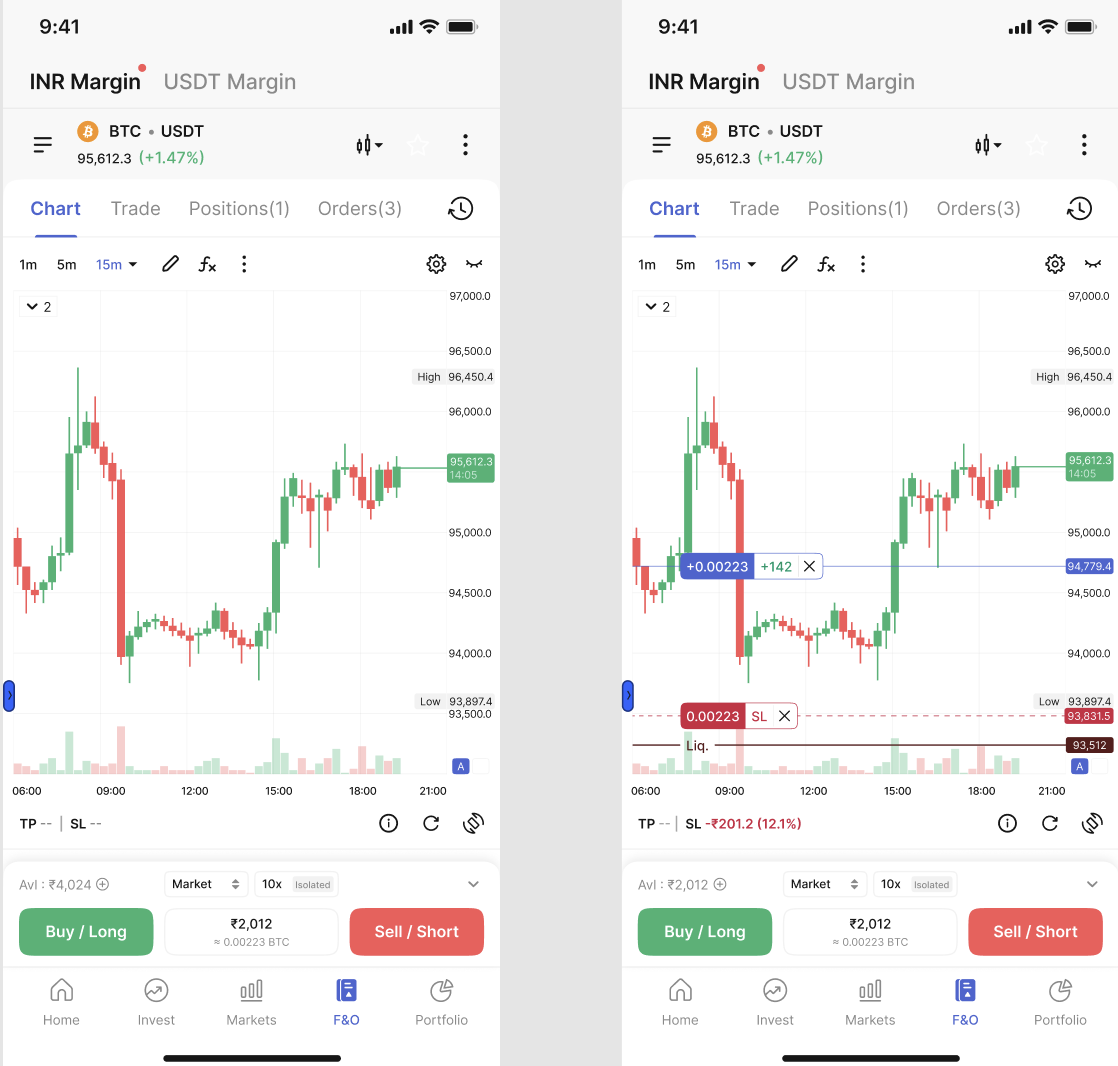
After placing the order: You’ll now see two key markers on the chart.
Postion Line:
- Drawn at your Average Entry Price
- Displays Contracts + Live P&L
- Tapping the ‘X’ icon lets you Quick Exit the position instantly
Liquidation Line:
- Placed at your Liquidation Price (based on isolated margin settings)
- Helps you visually track risk as price moves
3. Managing TP/SL
- Tap on the lines to see the TP & SL buttons and drag to your desired price point.
- Tap :x: icon to cancel your order
- You can also check active positions in the Positions tab to: Adjust size, Add TP/SL, Partially or fully close
4. Placing a Limit Order
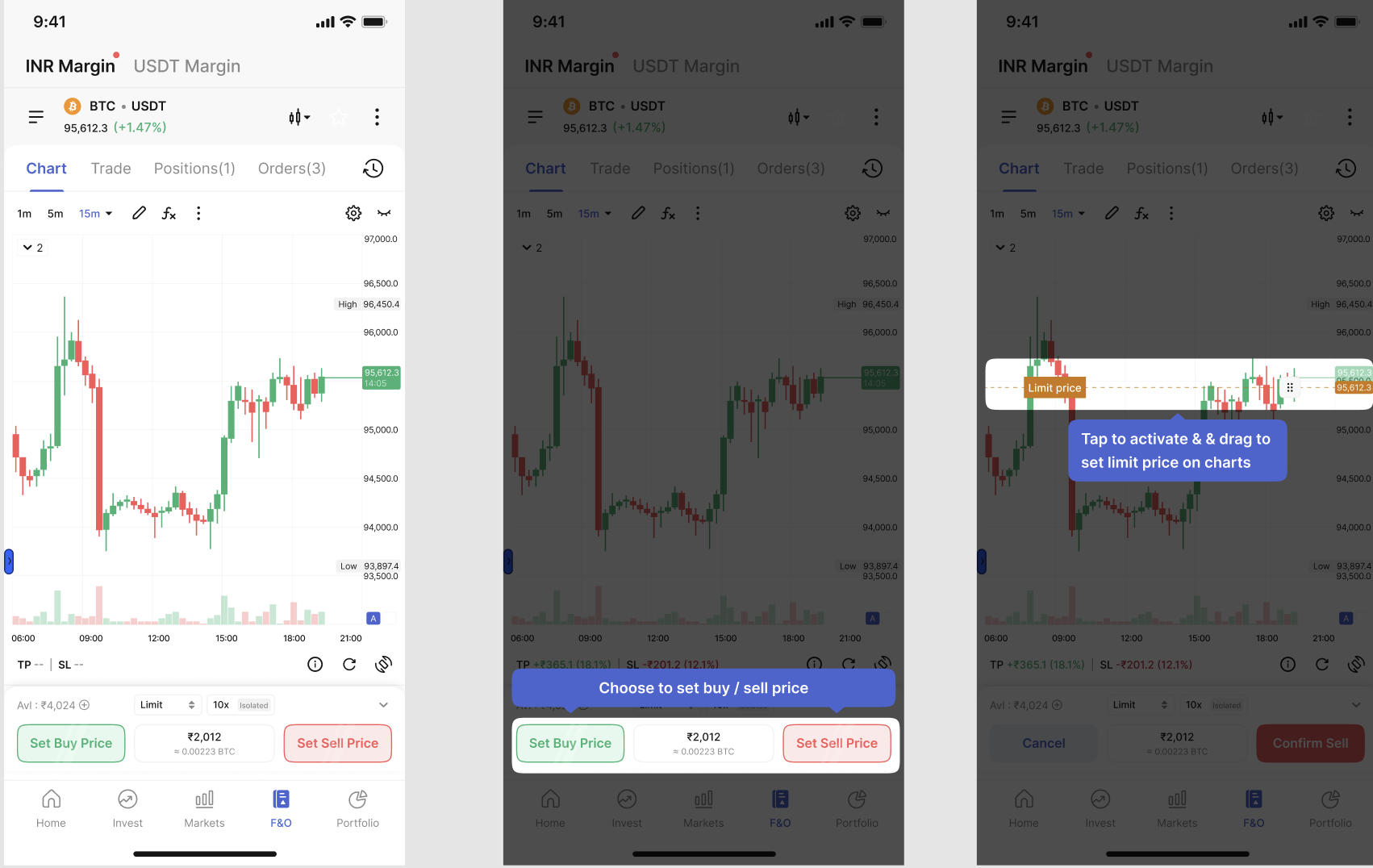
- Select Limit Order from the order form.
- Tap Set Buy Price or Set Sell Price a line appears on the chart.
- Important: click the line first, then drag it.
- Enter order size and leverage and click Confirm.
- Edit the drag lines or cancel (×).
Editing an Existing Limit Order:
Tap on the Limit Order Line directly on the chart to modify it. The line displays three things:
- Order Quantity (shows + or – depending on buy/sell side)
- Order Type (Limit/Trigger)
- A Cancel (X) icon for instantly removing the order
Simply drag the limit line to adjust the price or tap to edit size and type.
5. TP/SL – Manual & Editable
- Add Take Profit or Stop Loss using the TPSL button right from the chart
- Quick presets like 10%, 20% are available, or you can enter custom values manually
6. Chart Settings
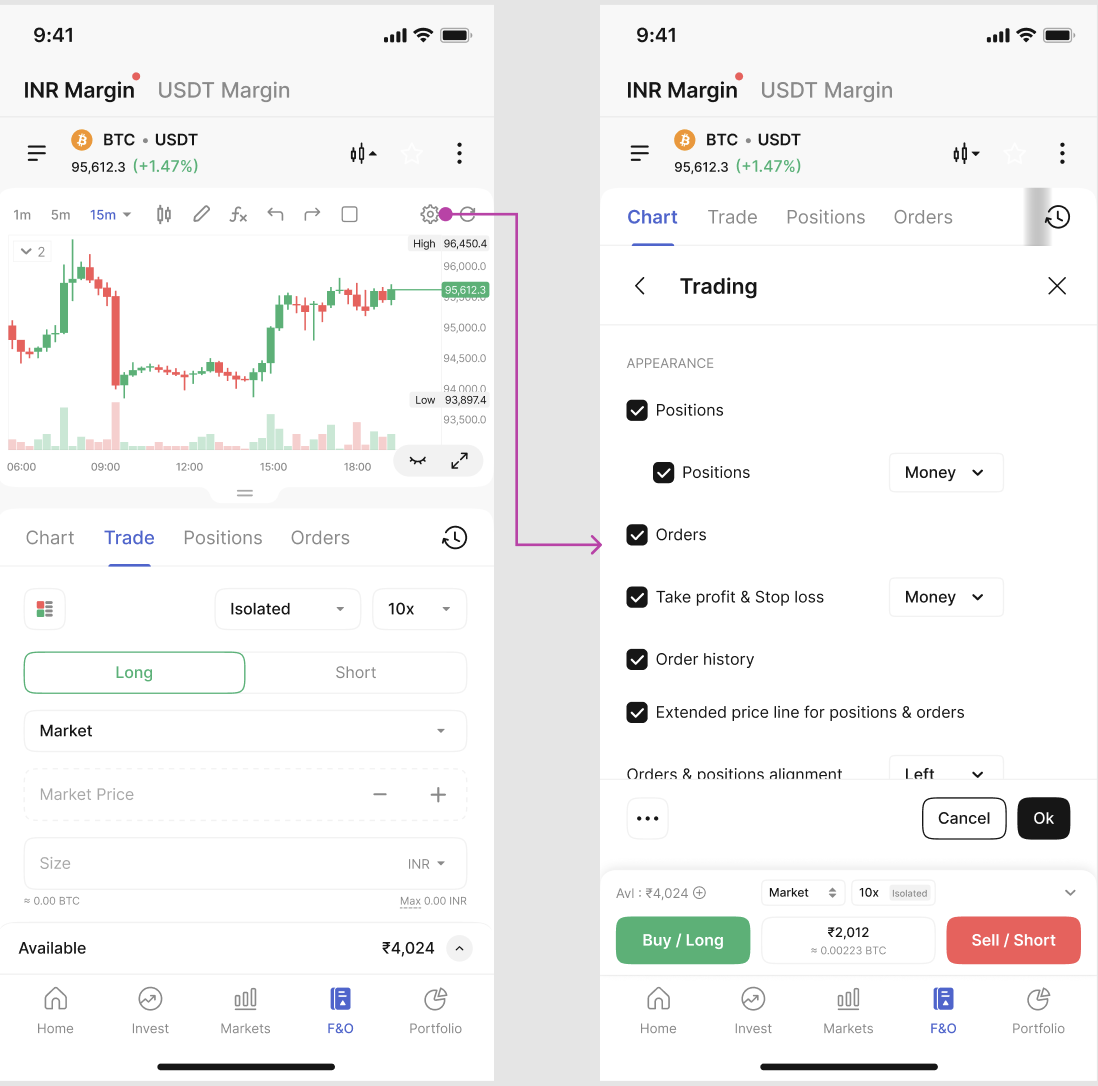
From Charts Settings (Cog Wheel icon on charts), move to Trading section, where you can enable/disable:
- Profit/Loss lines
- Order lines
- Execution lines
- Position lines
- You can also choose whether bars are center- or left-aligned.
To hide lines temporarily, tap on the ‘eye’ icon. To hide them permanently, adjust the options in Settings.
Quick Recap
- Default view → Charts open, Order Form collapsed
- Chart Trading Mode → order directly on charts
- Market orders → instant entry + TP/SL lines
- Limit orders → set buy/sell price with draggable lines
- TP/SL → add manually or edit directly
- Settings → control line visibility & alignment
Conclusion
Chart Trading makes Futures trading on CoinDCX faster, smarter, and more visual, perfect for traders who want advanced control in volatile markets. Try it now on CoinDCX Futures and experience trading directly from the chart.